Custom POS Terminal Selector App
By default, terminal selection uses VTEX's native selection screen (a JSON Schema form listing stores and terminals). The Adyen connector also offers an optional custom app, adyen.terminal-selector-ipp, that replaces that screen with a faster, QR-code-based flow for busy checkout counters.
Enabling it
adyen.terminal-selector-ipp is installed automatically as a dependency of the AdyenV3 provider — no separate install step needed.
- In the VTEX Admin, go to Store Settings > Payments > Providers.
- Edit your AdyenV3 provider.
- Set Custom POS Terminal Selector App to Enabled (use adyen.terminal-selector-ipp).
- Click Save.
Note: This field is Disabled by default, so existing stores keep using the native VTEX selector unless you opt in.
How store staff use it
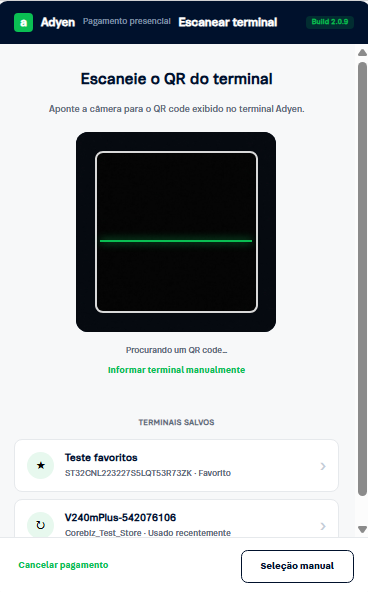
Instead of choosing a store and terminal from dropdown lists, the operator scans the QR code shown on the Adyen terminal's screen:
- Scan: point the device's camera at the QR code displayed on the terminal. The app reads terminal QR codes printed in either color scheme (dark code on a light background, or light code on a dark background).
- Auto-resolve: a recognized code automatically selects the correct store and terminal — no manual lookup needed.
- Favorites: terminals used before are saved per store and offered as one-tap options (starred favorites and recently-used), skipping the scan entirely for repeat transactions.
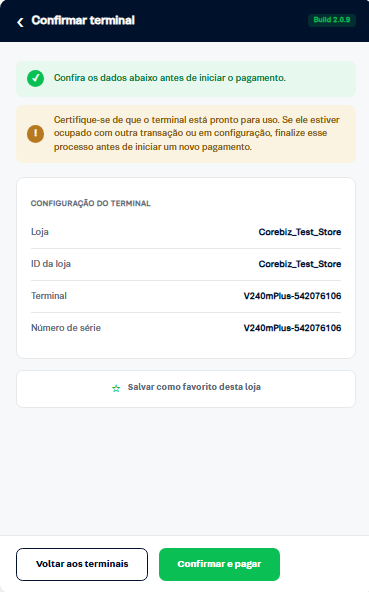
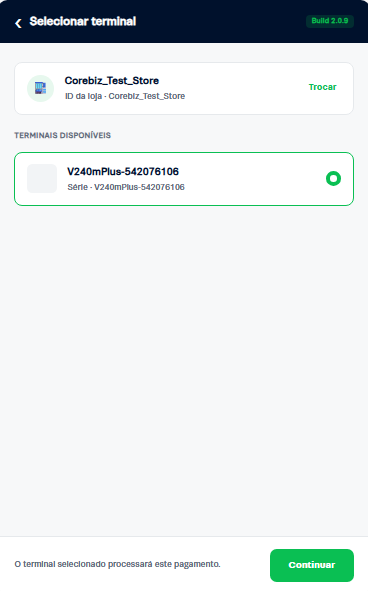
- Confirm: the resolved store and terminal are shown for a final confirmation before the payment is sent.
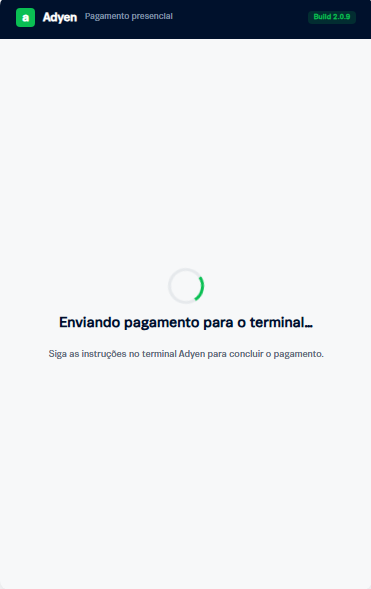
Once confirmed, the app sends the payment to the terminal and shows a processing screen while the customer completes the payment on the physical device:
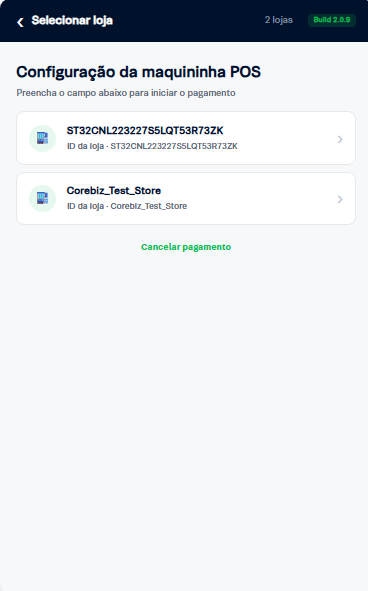
- Manual fallback: if the camera is unavailable, denied, or the code isn't recognized, a manual-selection link offers the same store/terminal dropdown flow as the native selector — choosing a store, then a terminal registered to it.
Switch the terminal to Light mode (Optional)
Adyen terminals ship with a Dark mode theme by default. In this mode, the terminal's QR code renders as light modules on a dark background, which takes longer to scan than the alternative. Switching the terminal's theme to Light mode in the Adyen Customer Area makes that QR code faster and more reliable to scan, with no app configuration needed.
Create a Light mode theme
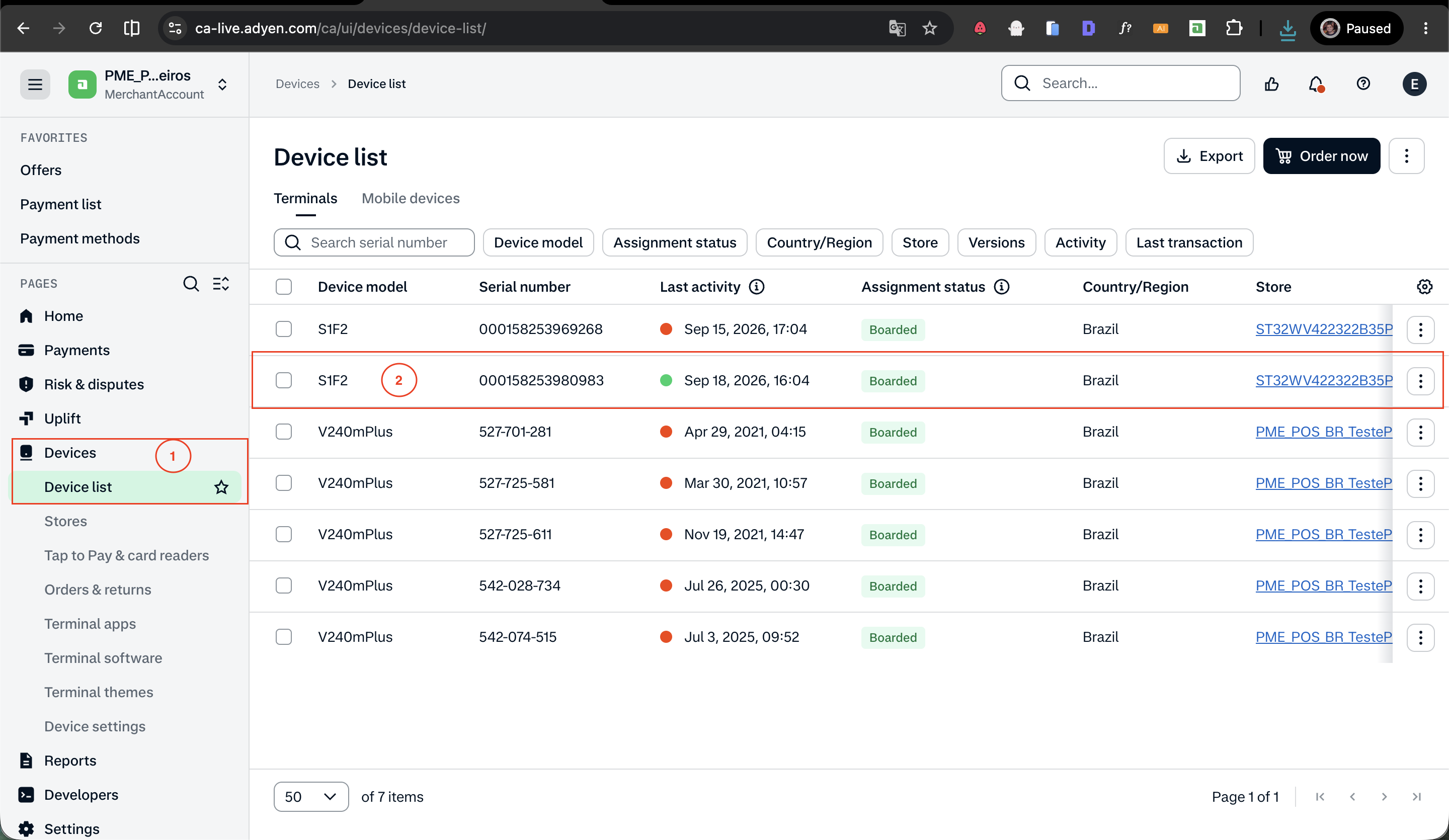
- In the Adyen Customer Area, go to Devices > Device list.
- Click the terminal that currently has Dark mode active.
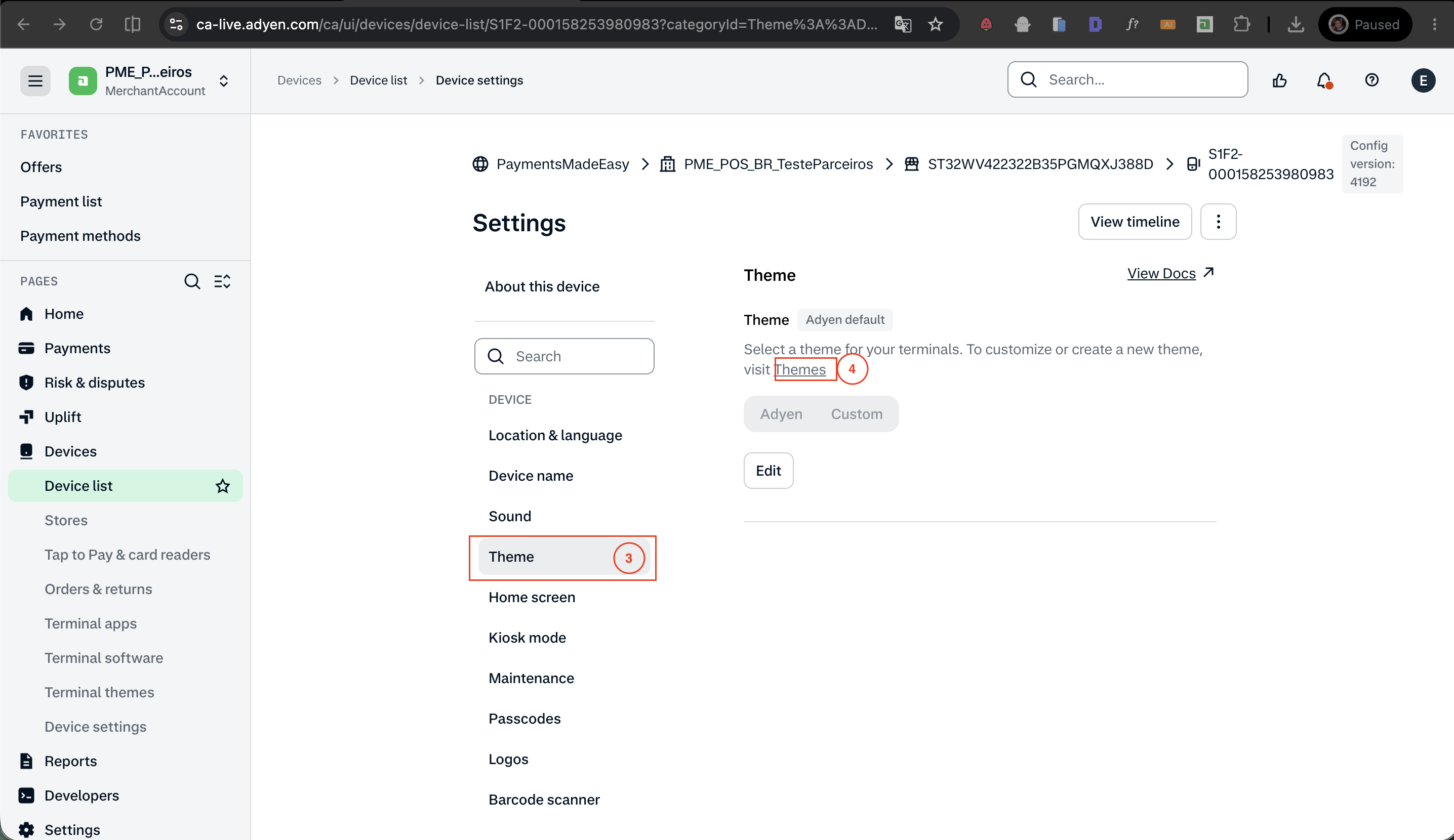
- Go to the Theme tab.
- Click Themes to create and manage themes (skip to Apply the theme if the terminal already has a Custom theme you want to reuse).
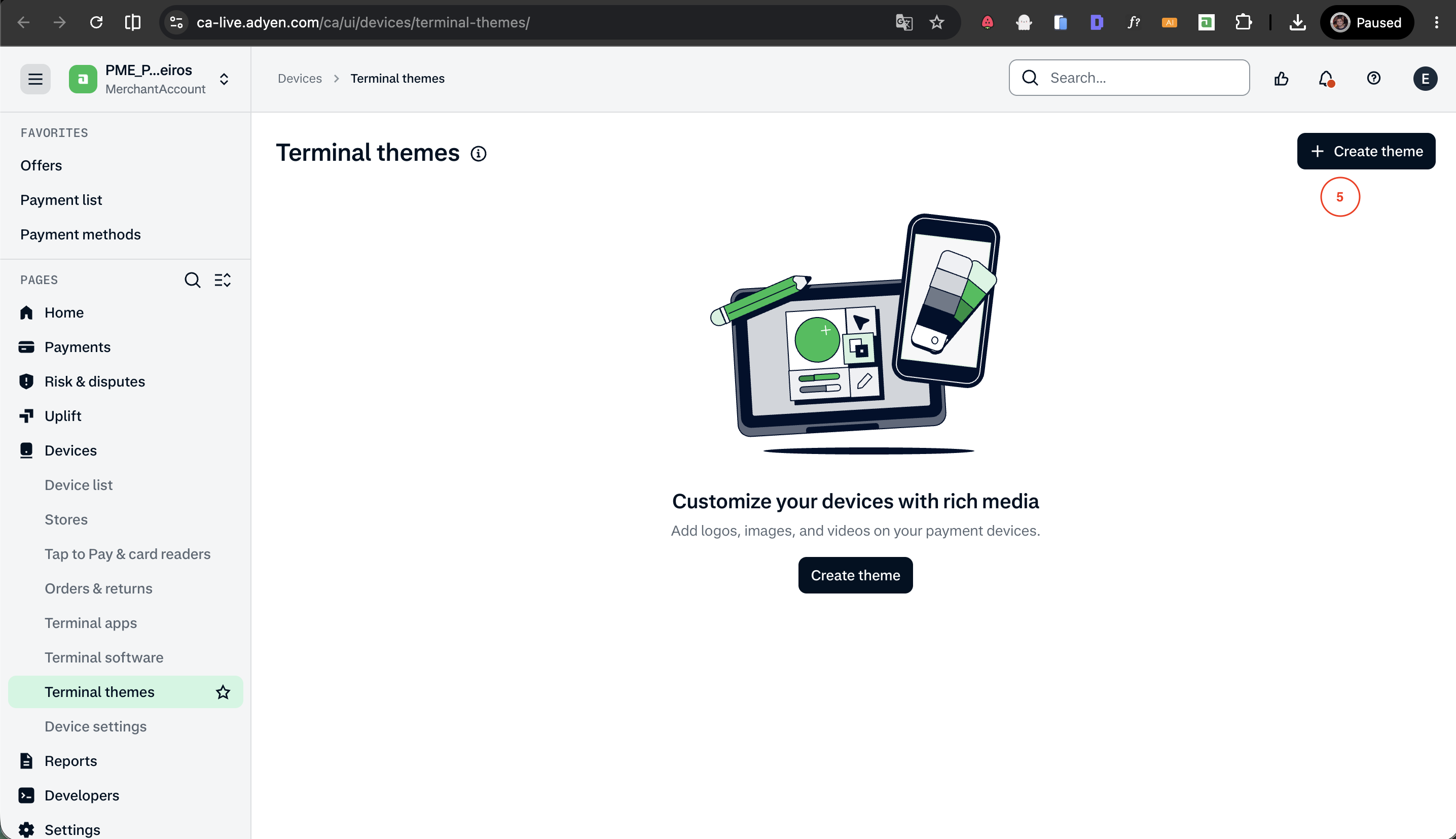
- On the Terminal themes page, click Create theme.
- Give the theme a descriptive name and set Appearance to Light mode.
- Click Save.
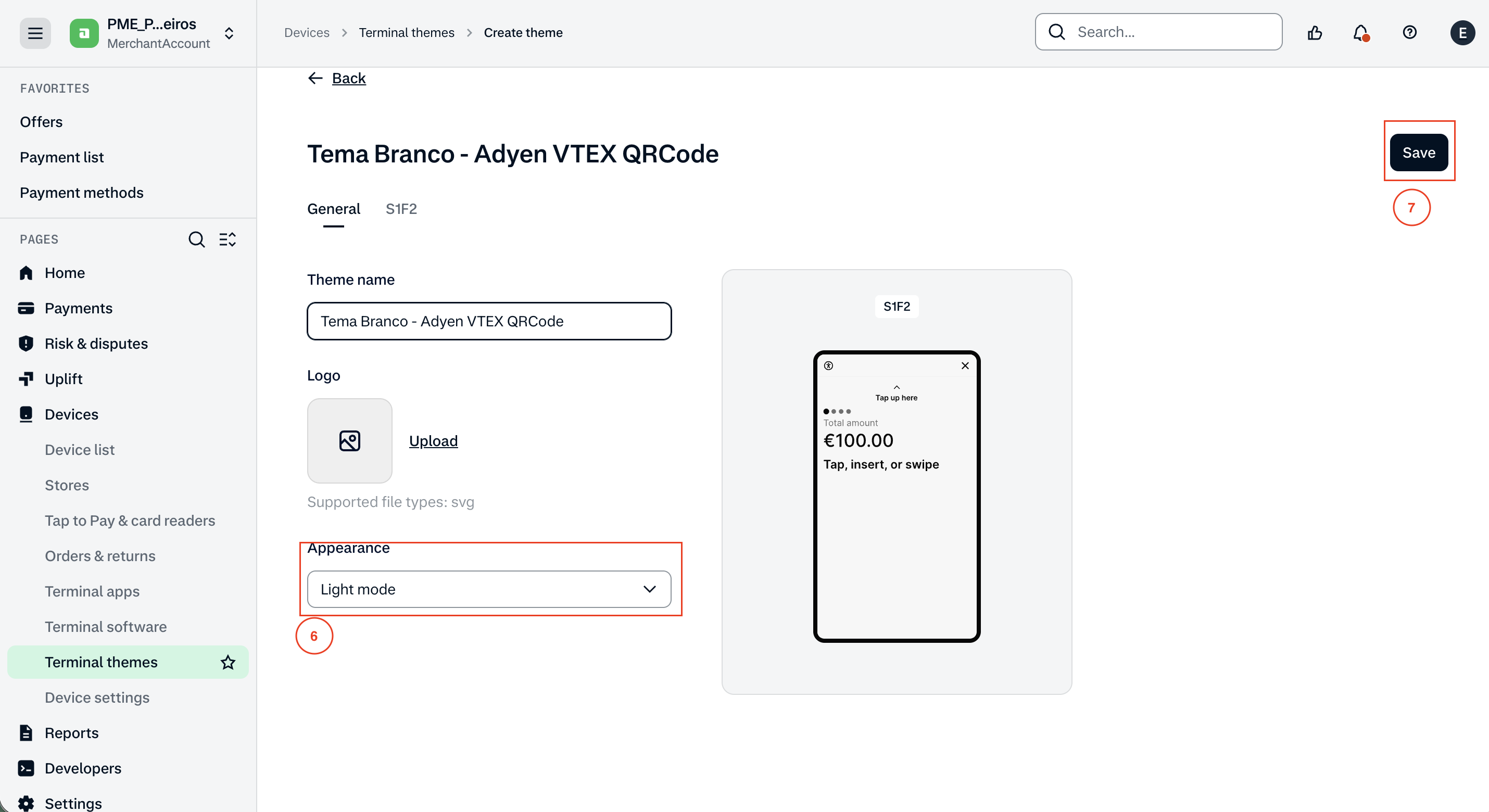
Apply the theme to the terminal
- Back on the terminal's Theme tab, click Edit.
- Select Custom.
- Choose the theme created above from the dropdown.
- Click Save.
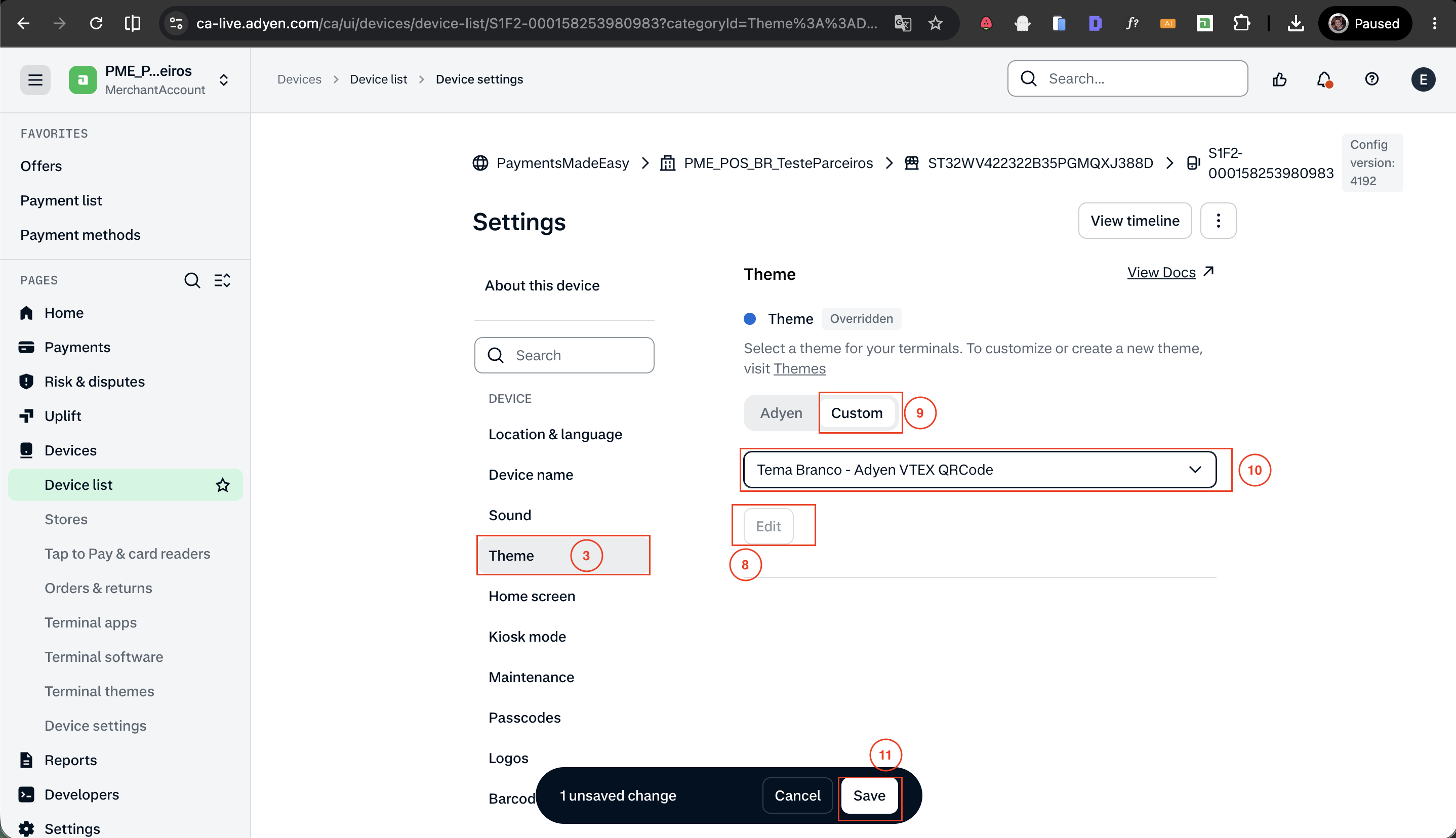
- Open the ⋮ menu and click Reassign, confirming the same store the terminal is already linked to. This pushes the new theme to the physical device.
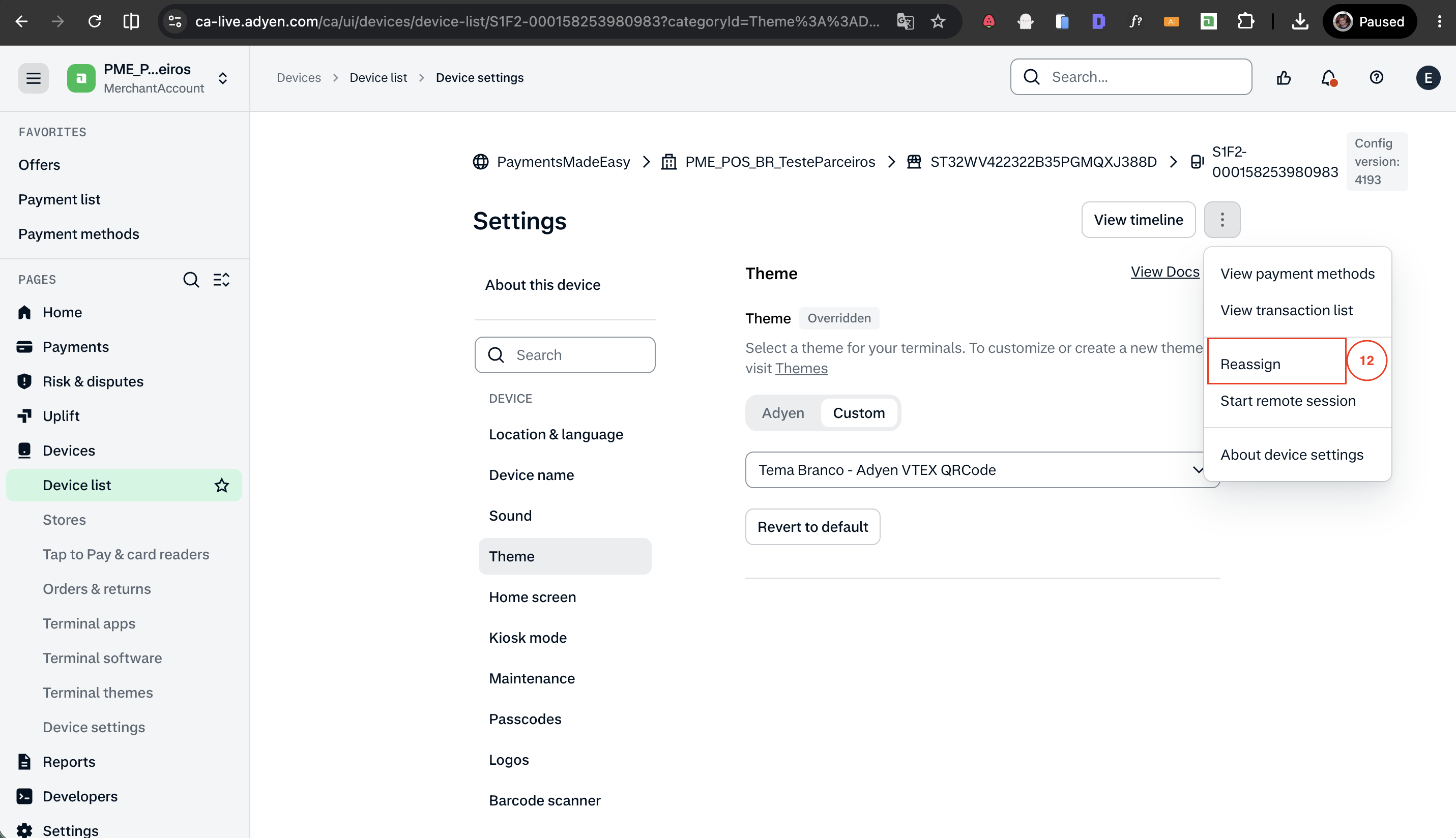
Note: The terminal fetches the new configuration on its next check-in after reassignment — this isn't always instant.
Troubleshooting
- QR code not scanning: make sure the terminal's screen is well lit and free of glare, hold the device steady, and get close enough that the code fills most of the camera frame. If the terminal is in Dark mode, switching it to Light mode makes its QR code faster to scan.
- "Not a terminal for this store" warning: the QR code was read correctly but doesn't match a terminal registered to this store — confirm the terminal is assigned to the correct store in the Adyen Customer Area.
Was this page helpful?