Configuring the Provider
Once you have completed all the steps listed in the Adyen Configuration section you should have all the information needed to be able to activate the Adyen V3 as a payment provider in VTEX.
The VTEX Payments module allows several payment providers (gateways, acquirers, sub-acquirers, orchestrators, PSPs, among others) to be configured in your store. This way, you can offer different payment methods and conditions to your customers.
When a purchase is made in your store and the customer makes a payment, data transmission between VTEX and the chosen provider occurs through communication protocols configured in the VTEX Admin.
The payment provider is responsible for processing the payment and returning the result to VTEX. The payment provider can also be responsible for the anti-fraud analysis of the transaction.
Ensure you have the necessary permissions and details of the Adyen payment gateway. To register Adyen gateway affiliation in VTEX, follow the steps below:
-
Go to the store's Admin page
https://{{account}}.myvtex.com/admin/. -
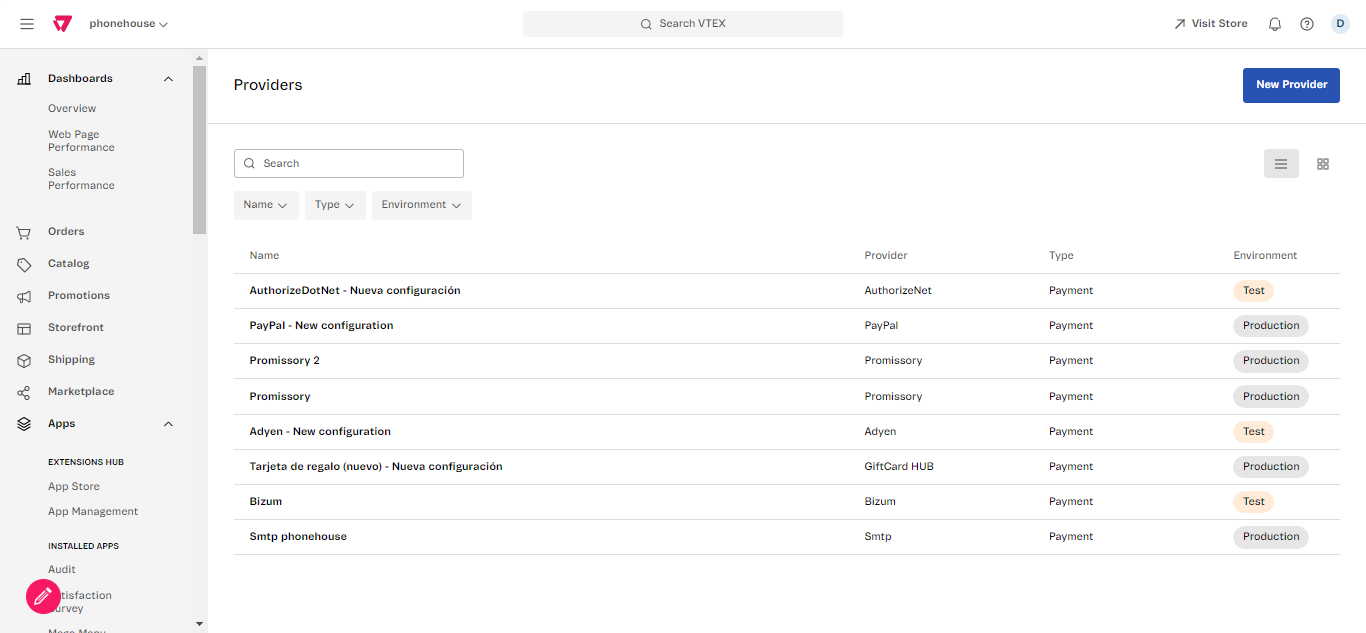
In the VTEX Admin, go to Store Settings > Payments > Providers, or type Providers in the search bar at the top of the page.
-
On the providers screen, click the New provider button.
-
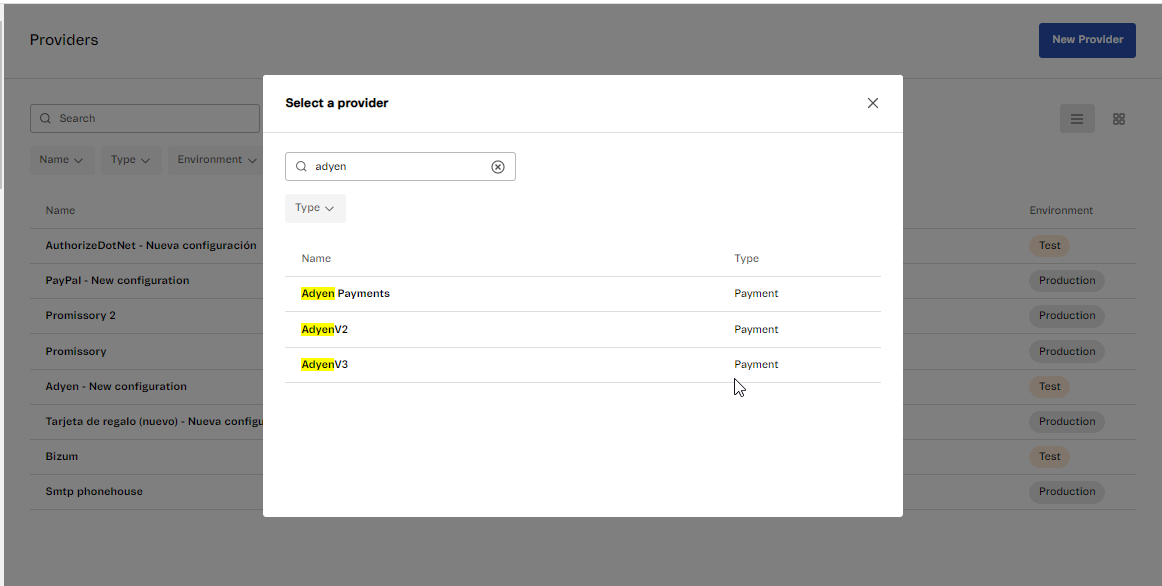
Look for Adyen.
-
Select AdyenV3 from the list of available payment providers.
-
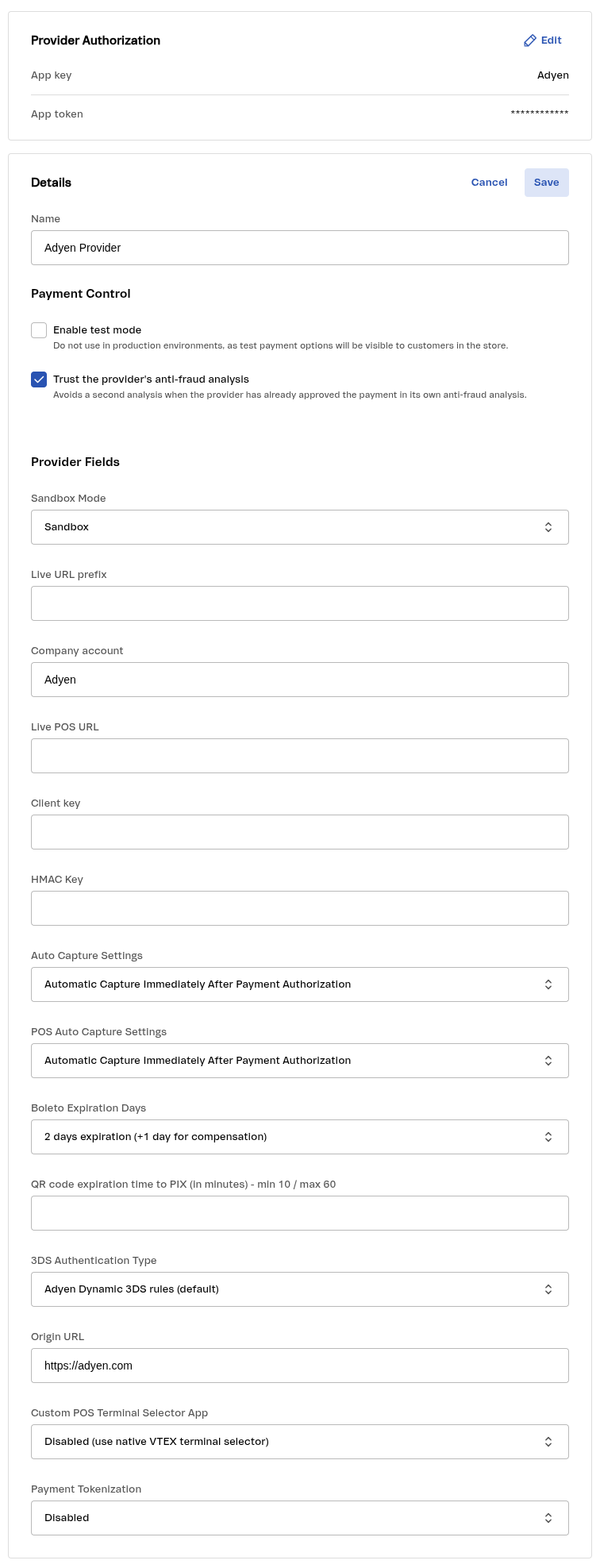
In App Key (your Merchant Account Name) field, fill in the name of your Merchant account you grabbed during the Getting Company and Merchant account credentials step.
-
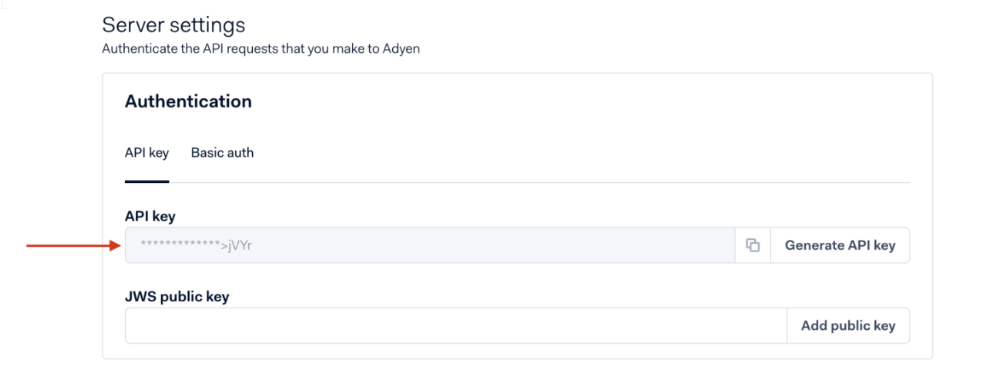
In the App Token (API Key) field, paste the API Key generated in the API Key step.
-
Optionally, set an identification name by filling the Name field in Basic Information.
-
In Payment Control, if your store is not yet in production and you are running tests, you may check Enable test mode.
-
Also in Payment Control, check Trust the provider's anti-fraud analysis. This avoids a second anti-fraud analysis when Adyen has already approved the payment. See Native Antifraud.
-
Sandbox Mode allows you to switch between the live (production) environment and the test (sandbox) environment of the Adyen connector. It is designed for validating integrations, simulating transactions, and ensuring that your payment flow configuration is correct before going live.
-
In the Live URL prefix field, fill in the URL prefix you’ve gotten in the Live URL section.
Note: This field should only be filled for production environments. For testing, it must be left blank.
-
In the Company account, enter the Company account name as set in Adyen, the one you saved in the Getting Company and Merchant account credentials step.
-
The Live POS URL field is used only for Sales APP.
-
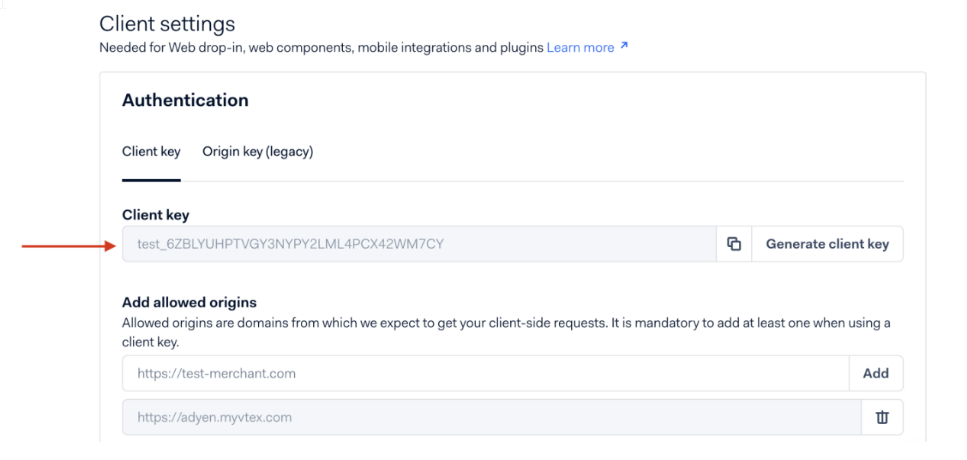
In Client key field, fill in the Client key you got on Step 6 of the API Key section.
-
In the HMAC Key field, paste the HMAC key generated in Adyen. See HMAC Signature for the full configuration steps.
-
In Auto Capture Settings and POS Auto Capture Settings, configure capture timing (immediate capture after authorization, or a settlement delay). For payment methods that support separate captures, the connector always sends transactions to Adyen as manual capture (authorization only), not according to the Adyen Customer Area. For details, examples, and payment methods that are not affected, see Manual capture.
-
In Boleto Expiration Days, set the number of days until the boleto expires. See Configure Boleto expiration days.
-
In QR code expiration time to PIX (in minutes), set how long the Pix QR code stays valid (minimum 10, maximum 60; default 10). See the Specific Rules in Pix.
-
In 3DS Authentication Type, choose how 3DS authentication is requested:
- Adyen Dynamic 3DS rules (default): The connector does not override anything; your Dynamic 3D Secure rules in the Adyen Customer Area decide whether each payment is authenticated. Successful authentication shifts liability to the issuer. This option was previously labeled "Full 3DS Authentication". Stored configurations keep working unchanged.
- Always request 3DS: Requests 3DS authentication on every card payment, regardless of your Dynamic 3D Secure rules. Maximizes liability shift but adds friction, which can lower conversion.
- Disabled (no 3DS): Never requests 3DS authentication, for any card (credit or debit). There is no liability shift: fraud chargebacks stay with the merchant. Issuers in markets where authentication is mandatory (e.g. PSD2/SCA in the EEA, debit cards in Brazil) may refuse these payments.
- Data Only (Currency BRL): Sends risk data to the issuer without requiring customer interaction. Allowed only for credit card transactions in BRL (Brazilian Real); any other payment falls back to Adyen Dynamic 3DS rules. Because there is no active shopper authentication, liability for fraudulent transactions may remain with the merchant.
-
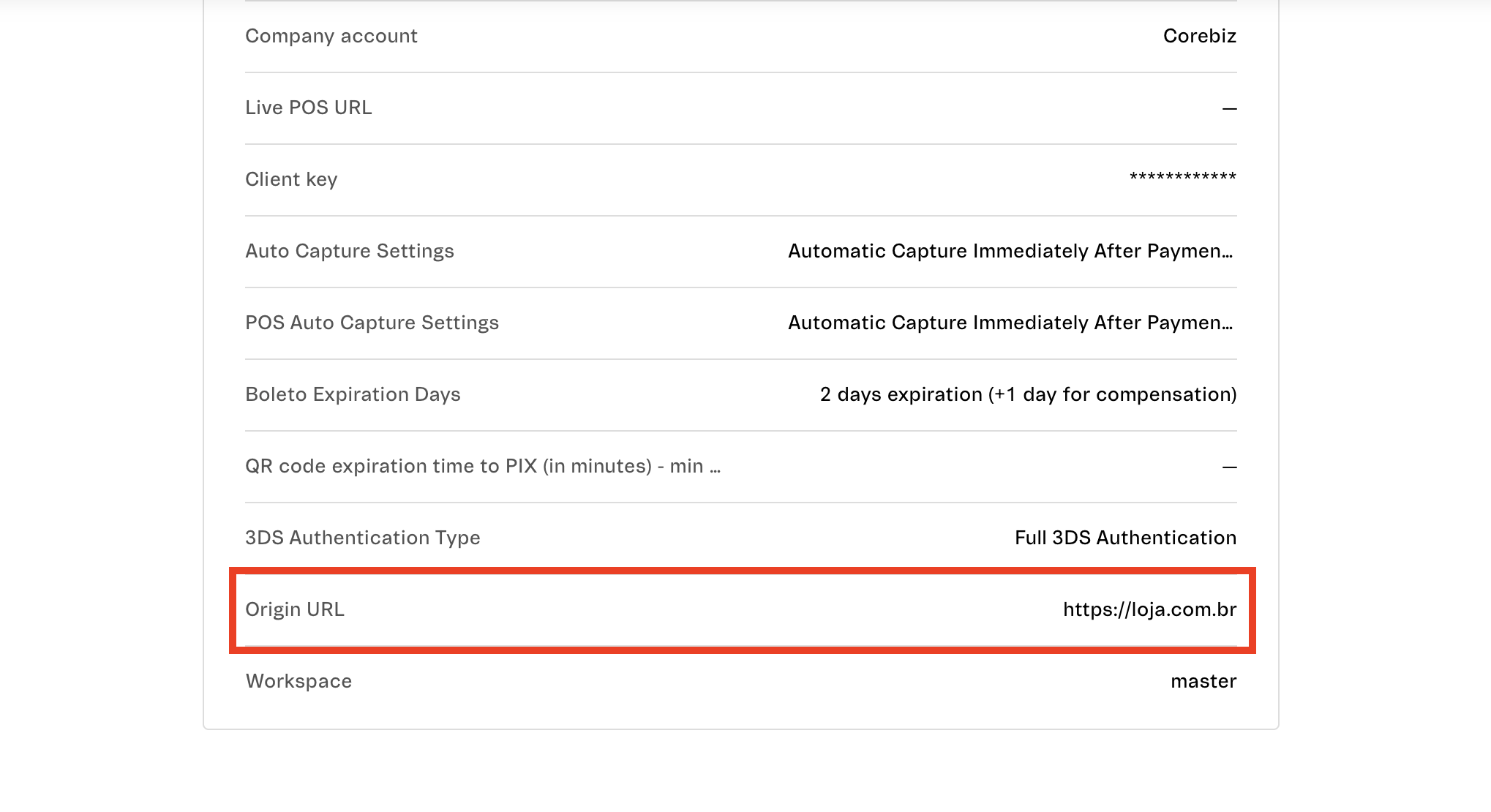
In Origin URL field, enter the final URL of your store (e.g.,
https://loja.com.br).- The URL must be the final domain, without subdirectories and without a trailing slash.
- This field is mandatory for processing 3DS transactions on the Web channel.
- Do not use the
.myvtex.comdomain for production. - Character limit: 80 characters.
Important: To validate 3DS in a development workspace (e.g.,
https://homolog--loja.myvtex.com), inform the workspace URL in the Origin URL field and also register this URL in the Adyen panel, as described in the Additional Configurations step. -
In Custom POS Terminal Selector App, you can enable the QR-code-based terminal selector. It is Disabled by default. See Custom POS Terminal Selector App.
-
Payment Tokenization (BETA): Payment tokenization with Adyen is under development. If you are interested in joining the beta testing program and getting early access to this feature, contact us at suporte.adyen@wppcommerce.com.br.
-
Click Save.
For further information on the data to be filled in, please refer to the Adyen API Credentials documentation.
If you need extra help, check the steps outlined in the VTEX tutorial or VTEX Payments Track
Was this page helpful?